

Marketing tips, news and more
Explore expert-backed articles on SEO, data, AI, and performance marketing. From strategic trends to hands-on tips, our blog delivers everything you need to grow smarter.
How to Fix Remove Unused CSS Warning
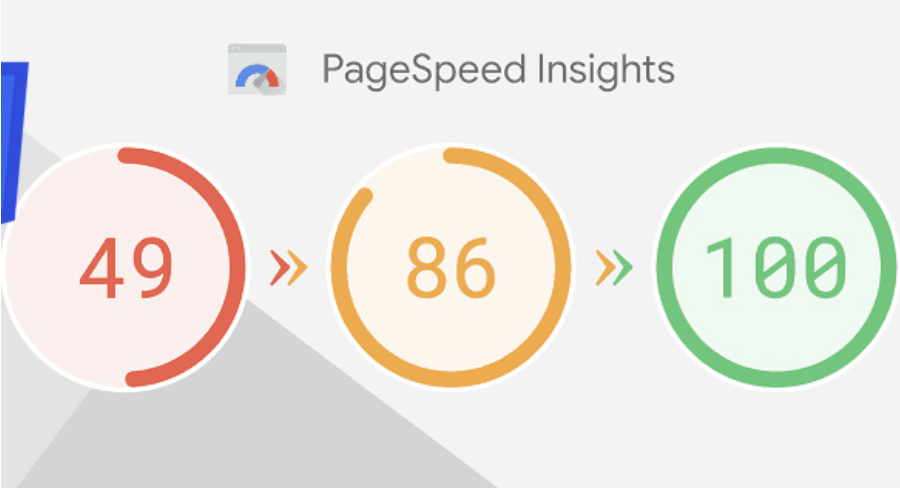
Updates in search engine algorithms have made many metrics and technical infrastructure important to provide a more successful user experience. In the period from 2015 to 2022, users' mobile and tablet usage increased significantly, while desktop and laptop usage decreased. This situation has caused poor user experiences, especially on sites with large page sources.For example, users visiting a website from mobile devices experience excessive resource consumption and wasted time while loading websites with high-volume images and unused CSS and JS files. This is because the loading times and site speeds of such websites provide an inadequate experience for users, and since the user accesses the site from a search engine, it also causes search engines to lose image.Aware of this, search engines have started to pay significant attention to website speed and resource consumption with the latest updates in their algorithms. To optimize this situation, website owners have strengthened their optimizations in this regard by analyzing the speed and resource consumption of their websites with measurement tools such as Pagespeed and GTMetrix.Pagespeed Page Speed AnalysisAmong the most important performance tools used when optimizing a website, Pagespeed and GTMetrix tools undoubtedly come first. Pagespeed, in particular, developed by Google, shares with us the speed metrics that prevent a successful user experience on websites.One of the metrics that website owners frequently encounter and often fail to solve in Pagespeed analyses is the removal of unused CSS files.Unfortunately, Pagespeed and GTMetrix tools do not share with us which lines in the unused CSS files are actively used, but only provide us with estimated savings and files. This warning alone is not enough to solve this problem.What Are Unused CSS Files?In today's modern web programming technologies, many developers prefer ready-made libraries instead of coding HTML & CSS from scratch. Libraries like Boostrap and Tailwind are examples of these structures. The difference of ready-made CSS libraries is that they collect many button, navbar, grid structure, visual and design commands under certain classes in a single library. In this way, web site developers can easily use all style and CSS arrangements by giving a class to the relevant HTML element, instead of writing separate CSS commands for each structure and module. For example, while many lines of CSS code need to be written to give a button various color and radius styles and hover effects, the desired style arrangements can be obtained by giving a single class since the relevant commands and lines are included in the ready-made library.Although ready-made CSS libraries are very practical for developers, they can cause some problems in SEO-related arrangements as they increase the query and resource consumption on the website. For example, when you include the bootstrap library on your website, you can actively use only 1 or 2 of the 16 different button styles in it. The remaining 14 button styles continue to be included in the CSS file and increase the page's resource consumption even though they are not actively used.In these cases, performance tools that measure speed, such as PageSpeed, inform us that there are actively unused CSS files on the website and ask us to make optimizations related to this.How to Detect Unused CSS Files?There are several ways to detect unused CSS lines on a website. You can use modules like purgeCSS or manually view these lines from the page inspection.To detect unused CSS files, the first thing you need to do is right-click on the page and click on the "Inspect" option.Then click on the three dots on the right side of the window that opens and click on the More Tools > Coverage option.You will see a record button in the section that opens at the bottom. Click this button and refresh the page with CTRL + F5 or Command + F5. After the page is refreshed, you will see that many CSS and JS files have appeared below.The rates on the right side in this section show the unused rate in the relevant CSS file at the moment the page is loaded.When you click on any CSS file, the relevant file opens in the window, and you can again view the unused CSS lines in red and the actively used ones in blue.The important detail here is to determine which code is used on different pages and which lines are active on mobile and tablet devices.How to Remove Unused CSS Files?We learned where to see the unused CSS lines on the website. However, the important part here is to be able to analyze well which CSS line is really used and which is not. Because some CSS lines may be included in a single file for different pages, as well as being included in mobile and tablet devices.For this reason, you should first copy the unused lines from the ready-made library codes in the CSS lines, then navigate to the service, category, product, contact, etc. pages of the site and perform the coverage process we shared above on each page.In addition to this process, you should switch to the mobile and tablet views of your website from the device selection area in the inspect section and, in the same way, visit all pages and copy the unused CSS lines to one side.In the final stage, you can clean the common and actively unused CSS lines among all the CSS lines you have copied.Note: It is recommended that you perform all these operations on the test version of your website and, after performing the cleaning, carry it to the main version if no problems are observed.

What is Google Search Console? How to Use Google Search Console?
Google Search Console can be defined as a free Google Webmaster tool, available to anyone who owns a website. Of course, that definition is very general. More precisely, Google Search Console is a tool that allows site owners to check and optimize their website’s presence on Google.In this article, we will answer many common questions about Google Search Console.What is Google Search Console?Let’s take a closer look at what Google Search Console really is, beyond the general outline above.Google Search Console is a free Google service useful to anyone with any relationship to Google on the web. Formerly called Google Webmaster Tools, it evolved into today’s Search Console as each tool was specialized. Another useful free tool provided by Google is Google Analytics. Search Console and Google Analytics used to be integrated directly.With Google Search Console, you can see how Google views your site. You can also access detailed performance data—such as which queries drive how much organic traffic—which pages rank for which keywords.Search Console isn’t just for site owners; content creators benefit too. Ranking issues can arise from technical errors, preventing valuable content from appearing correctly in search results. Search Console helps diagnose and fix such issues for individual pages or entire sites.To use Google Search Console, you need a Google account. Simply go to https://search.google.com/search-console/ and sign in with your Google credentials.On your first visit, you’ll see a screen like the one above, where you can add the sites you own to your Search Console account.Adding a Site to Search ConsoleAfter setting up your account, you must add your site to Search Console to verify ownership. The steps are as follows:You have two options here. “Domain” verifies all subdomains and protocols under that domain in one property. “URL prefix” verifies only the exact URL you specify. Because some sites require separate entries for https:// and http:// under “Domain,” you may prefer “URL prefix” to avoid duplicate properties.Site Verification MethodsSearch Console offers several methods to verify you own the site. All methods confirm that the person requesting Search Console access has control over the site’s code or files. In every case, you must either upload a file or add code that only the site administrator can do.HTML File UploadAfter entering your site URL and choosing verification, you can download a unique HTML file from Google. Upload that file into your site’s root directory (usually public_html), then click “Verify.”Once Google can fetch that file, you’ll see a “Ownership verified” message. If you later remove the file, verification will expire and you’ll lose Search Console access.HTML Meta TagYou can also verify by adding a meta tag to the section of your site’s homepage.Paste Google’s unique verification code into your , click “Verify,” and you’ll gain access immediately.Other methods include: Google Analytics: Verify if you already have Analytics tracking set up. Google Tag Manager: Use your GTM container snippet to verify. Domain name provider: Add a DNS TXT record at your domain registrar. Adding the Correct PropertyA common pitfall is adding duplicate properties—for example, both https://analyticahouse.com and https://www.analyticahouse.com. Technically they are different URLs. The canonical version should be used, or add the domain property to cover all variants in one go.Search Console TerminologyWhat is a Search Query?Every keyword search that returns your site in results is counted as a query. Search Console shows which queries your site appears for, along with performance metrics.ImpressionsAn impression is counted each time a URL from your site appears in a user’s search results. The user doesn’t even need to scroll down; merely being listed counts as one impression.ClicksA click is when a user clicks through from the search results to your page. Repeat clicks in the same session don’t count; clicks from different sessions or after clicking another result will count again.Average PositionThis is the average ranking position of your pages for a given query or set of queries. For example, if one page ranks 7th for “Google Algorithm” and 5th for “Algorithm Updates,” its average position would be 6.CTR (Click-Through Rate)CTR is clicks divided by impressions, expressed as a percentage. If you get 50 clicks from 100 impressions, your CTR is 50%.Key Filters in Search ConsoleSearch TypeFilter performance by search type: Web, Image, Video, or News. You can also compare two search types side by side.Date RangeFilter data by date range—last 7 days, last 28 days, last 3 months, etc.—or compare two ranges for trend analysis.Query, Page, Country, DeviceUnder “New” you can filter by specific queries, pages, countries, or devices (desktop, mobile, tablet).Index Coverage ReportThis report shows which pages Google successfully indexed, which have errors, and which were excluded (e.g., due to canonical tags).Submitted SitemapsSee which sitemaps you submitted and whether Google could read them successfully.Common Uses of Search Console DataHere are the most frequent ways to leverage Search Console for SEO: Identify pages with the most organic clicks Find queries with the highest CTR Track CTR trends over time Monitor impressions over time Discover pages with the highest rankings Spot pages with declining rankings Detect ranking improvements or drops Find queries driving the most traffic Compare performance across desktop, mobile, and tablet Check how many pages are indexed vs. have indexing issues Detect mobile usability issues See total backlinks Identify which URLs have the most backlinks Inspect how Googlebot fetches a specific URL Top Organic Pages by ClicksGo to Performance → Pages, set your date range (e.g., last 12 months), check only the Clicks metric, and sort descending.Queries with Highest CTRIn Performance → Queries, set your date range, check only CTR, and sort descending.Track CTR Over TimeIn Performance, view the CTR line chart to catch sudden drops or spikes, which may indicate changes in rankings or impression volume.Track Impressions Over TimeSimilarly, the Impression chart reveals whether you’re gaining visibility for more keywords or losing ground.Pages with Highest Average PositionIn Performance → Pages, set date range to last 28 days, check only Average Position, and sort ascending.Pages with Lowest Average PositionSame steps as above, but sort Average Position descending to find underperforming pages.Detect Ranking ChangesUse the date comparison in Performance → Queries to spot keywords that rose or fell between two periods.Top Traffic-Driving QueriesIn Performance → Queries, set date range, check Clicks, and sort descending.Device ComparisonIn Performance → Devices, check all metrics to compare desktop, mobile, and tablet performance side by side.Indexed vs. ErrorsIn Coverage, see how many pages are valid (indexed) versus errors (not indexed).Mobile Usability IssuesIn Mobile Usability, view any pages with mobile errors.Total BacklinksUnder Links → External, click “More” and view the total number of backlinks.Top Linked PagesIn the same report, sort “Top linked pages” by descending links.URL InspectionUse the URL inspection box at the top to see how Googlebot fetches a specific URL and whether it’s indexed.ConclusionGoogle Search Console is an essential SEO tool, playing an active role in diagnosing and improving a site’s interaction with Google search. We’ve covered its most common uses, but Search Console offers much more. As Google continues to enhance this tool, familiarity with Search Console is becoming mandatory for anyone working in digital marketing or web development.

Log File Analysis for SEO Performance
From an SEO performance perspective, log file analysis—and specifically examining the server’s access logs—tells us exactly how search engine bots behave after they crawl our site.In this article, we’ll answer “How do you perform a detailed log file analysis for SEO?” and “What are the benefits of log analysis?” using various scenario-based examples.What Is a Log File?Log files record who accessed your site, when, from which IP, and which URLs they requested.“Visitors” includes not only human users but also Googlebot and other search engine crawlers.Your web server writes these logs continuously and rotates or overwrites them after a set period.What Data Does a Log File Contain?A typical access log entry looks like this:27.300.14.1 – – [14/Sep/2017:17:10:07 -0400] “GET https://allthedogs.com/dog1/ HTTP/1.1” 200 “https://allthedogs.com” “Mozilla/5.0 (compatible; Googlebot/2.1; +http://www.google.com/bot.html)”Depending on your server configuration, you might also log response size or request latency. A breakdown of the key fields: IP address of the requester Timestamp of the request Method (GET or POST) Requested URL HTTP status code (see HTTP status codes) User-Agent string, telling you the client or crawler type Googlebot IP Address ListIn November 2021, Google published the full list of IP ranges it uses to crawl websites. You can find the JSON here:https://developers.google.com/search/apis/ipranges/googlebot.jsonWhere to Find Your Log FilesLogs live on your web server or—in some cases—on your CDN. How you access them depends on your server stack (nginx, Apache, IIS) and control panel. For example:cPanel: /usr/local/apache/logs/ or via the “Raw Access Logs” featurePlesk: /var/www/vhosts/system/your-domain.com/logs/Why Is Log Analysis Important for SEO?Analyzing logs tells you exactly which URLs search bots actually fetch—and whether they encounter errors.Unlike tools like Screaming Frog or DeepCrawl, which follow links, bots revisit URLs they’ve previously seen. If a page existed two days ago but now 404s, only logs reveal that mismatch.Log analysis can show you: Which pages bots crawl most often (and which they ignore) Whether bots encounter 4xx or 5xx errors Which orphaned (unlinked) pages are still being crawled Tools for Log File AnalysisPopular log analysis tools include: Splunk Logz.io Screaming Frog Log File Analyser (free up to 1,000 lines) Semrush Log File Analyzer GSC Crawl Stats vs. LogsGoogle Search Console’s Crawl Stats report shows some high-level crawl data, but it’s nowhere near as granular as raw logs.To access it: Settings > Crawling > Open report.Interpreting Crawl Stats Status All good: No crawl errors in the last 90 days Warning: An error occurred more than 7 days ago Critical: Errors detected within the last 7 days The report also breaks down by status code, file type, and crawler type (desktop, smartphone, AdsBot, ImageBot, etc.).How to Interpret Your Log AnalysisWith logs, you can answer: What percentage of my site do bots actually crawl? Which sections never get crawled? How deep into my site do bots venture? How often do they revisit updated pages? How quickly are new pages discovered? Did a site structure change affect crawl patterns? Are resources (CSS, JS) delivered quickly? 7 Example ScenariosHere are seven practical ways log analysis can inform your SEO strategy:1. Understand Crawl BehaviorCheck which status codes bots see most often and which file types they request. For example, in Screaming Frog’s log report: 2xx codes on HTML/CSS/JS are ideal—pages load successfully. 4xx codes indicate broken links or removed pages—these can waste crawl budget. 3xx codes show redirects—make sure only necessary redirects remain. 2. Identify Your Most Important PagesBots allocate more crawl budget to pages with more internal or external links. If you see excessive crawl on an English subdirectory, for instance, you might adjust your navigation or internal linking.3. Optimize Crawl BudgetEven smaller sites benefit from eliminating waste. Use logs to find URLs with unnecessary parameter crawls, frequent 301s, or robots.txt misconfigurations. Remove parameterized URLs from your sitemap and internal links. Set long Cache-Control headers for static assets. Consolidate multiple redirects into a single chain. Fix robots.txt typos so bots respect your crawl rules. 4. Detect Crawl ErrorsHigh volumes of 4xx/5xx responses can cause bots to throttle or stop crawling. Compare 2xx vs. error rates and fix broken pages promptly.5. Find Crawlable but Unindexed PagesPages eligible for indexing but rarely crawled can be found by filtering logs on low crawl frequency—e.g. “XX weeks ago.”Add these pages to your sitemap, link to them internally, and refresh their content.6. Discover Orphan PagesOrphan pages (unlinked) may still appear in logs. Filter logs for 200-OK HTML URLs with zero internal referrers. Then add internal links or remove them if they aren’t needed.7. Aid Site MigrationsDuring a migration, logs show your most-crawled URLs so you can prioritize preserving their redirect paths. After migration, logs reveal which URLs bots can no longer find.Using Log Analysis to Drive SEO FixesBy acting on your log insights, you can: Remove non-200 URLs from your sitemap Noindex or disallow low-value pages Ensure canonical tags highlight key pages Boost crawl frequency by adding internal links to strategic pages Guarantee all internal links point to indexable URLs Free up crawl budget for new and updated content Verify category pages are crawled regularly ConclusionLog file analysis is a powerful way to discover hidden SEO issues and refine your crawling strategy. If you found this guide helpful, please share it on social media so others can benefit!
What is RFM Analysis?
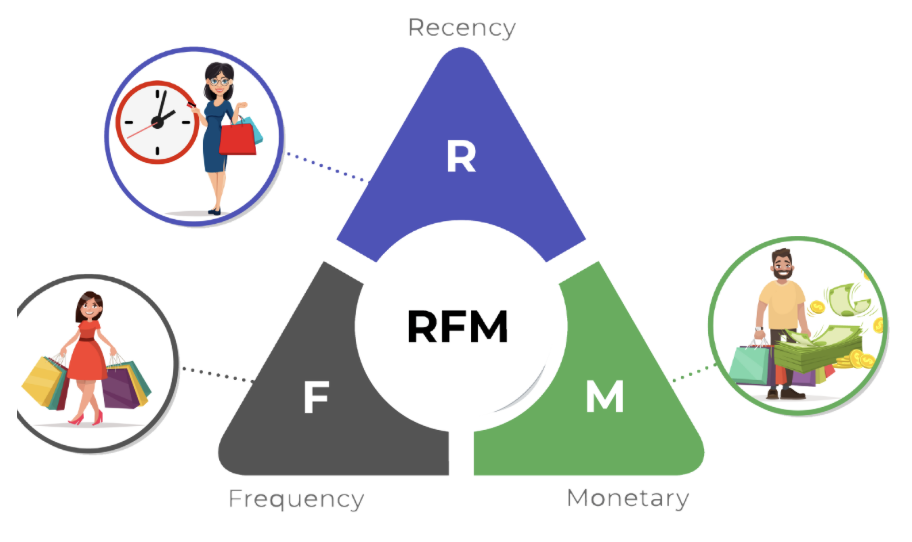
What is the most valuable asset for a company? Its tangible assets or inventory? Given developments in supply chains and the level of financial solutions, if you’re especially an e-commerce business, your most valuable asset is your customers.Beyond your sales, when planning your inventory levels, ad investments, and many operational activities, you must consider the future behavior of your customers.In today’s age of increasing digitalization and personalization, getting to know your customers is easier thanks to big data—but it also becomes more challenging as customer volume and diversity grow.In this article, we’ll discuss RFM analysis, one of the fundamental analyses you can use to segment your customers and build effective audiences.What Is RFM Analysis?RFM analysis segments customers based on purchase data. As an algorithm, it uses unsupervised clustering (K-means). The “RFM” acronym stands for three key metrics. First, let’s look at what each metric means.RecencyCalculated by the number of days between the analysis reference date and the customer’s most recent purchase date.FrequencyThe number of purchases the customer made in the analysis period. If many customers purchased only once—skewing the distribution—you may treat one-time buyers separately for a healthier analysis.MonetaryThe total monetary value of the customer’s purchases in the analysis period. Two considerations: 1) If purchases are in multiple currencies, convert them to a single currency. 2) If you have B2B wholesale orders, exclude them so they don’t skew the distribution.What Questions Can RFM Analysis Answer?Although RFM is purchase-behavior–based, it can answer many strategic questions about both new and existing customers, for example: Who are our most valuable customers? Which customers are at risk of churn? Which customers deserve retention efforts? Which customers share similar behavior for targeted campaigns? Why Is RFM Analysis Important?As every marketer knows, retaining existing customers is far cheaper than acquiring new ones. By using RFM to gauge how close customers are to conversion or churn, you can both retain at-risk customers and encourage more spending among active customers. You can also classify newly acquired customers into existing RFM segments to start personalized marketing before you’ve collected much new data.Required Data StructureRFM relies on transaction data—either CRM order logs or analytics platform transaction exports. For robust results, use at least one year (ideally two) of data. You need these columns: Unique customer identifier (user_id) Transaction date Order ID Transaction amount Then compute per-customer Recency, Frequency, and Monetary values in your database or analytics tool.Segmenting and Labeling AudiencesCluster customers into, say, four groups by each R, F, and M metric. Then combine their cluster labels. For example:Customers with high Frequency and high Recency are “Champions,” while high Frequency but low Recency might be “At Risk” or “Can’t Lose Them.” You can send “We miss you” coupons to at-risk groups, and premium product offers to Champions.Sum the R, F, and M cluster scores to get an overall customer score, then bucket into “Platinum,” “Gold,” “Silver,” etc. Use these segments to allocate ad budgets more effectively.At its core, RFM groups similar shoppers so you can optimize marketing spend, guide retention, and forecast sales.Additional Metrics to ConsiderYou can extend RFM with: Duration/Engagement: session time or pages per session Tenure: days since first purchase Churn Risk: predicted probability of churn Adding these refines your segments and deepens insights.Next StepsOnce segments are defined, analyze demographic, geographic, and behavioral patterns within each. Then: Map new customers to existing segments for immediate targeting. Run category- or product-level RFM to create niche micro-segments. Apply attribution models to understand each segment's purchase journey and optimize touchpoints. RFM analysis offers actionable insights from simple transaction data—use it to refine marketing strategies, reclaim at-risk customers, and boost customer lifetime value.If you found this post useful, please share it on social media so others can benefit!References https://en.wikipedia.org/wiki/RFM_(market_research) https://www.investopedia.com/terms/r/rfm-recency-frequency-monetary-value.asp https://iopscience.iop.org/article/10.1088/1742-6596/1869/1/012085/pdf

Make Your Website Stand Out with Corporate SEO Consulting
Seeing your brand’s website rank highly for key search terms on Google and other search engines is a top priority for every brand owner. Do you know how those sites get there? Well-planned strategies and analyses for a website—namely, SEO work—are what secure those first-page positions. Before diving into details on corporate SEO consulting services, let’s cover “What is SEO?” and “Why does it matter?” What Is SEO, and Why Is It Important? SEO (Search Engine Optimization) is the comprehensive set of digital marketing practices—literally “search engine optimization” in Turkish—that is essential and valuable for websites. SEO is the collection of strategies and optimization tasks aimed at boosting a website’s organic traffic, conversions, and brand awareness on search engine results pages (SERPs). If you want your site to appear for more keywords and attract more visitors, work with professional SEO agencies or specialists. Every SEO expert crafts bespoke strategies to elevate your brand’s visibility. Search engines—especially Google—constantly update their algorithms. To grow your online presence and visibility, you must invest in SEO. What Is Corporate SEO? Compared to ongoing SEO efforts, corporate SEO takes a more competitive, strategic approach. Enterprises face intense competition for high-volume keywords, and corporate SEO strategies prioritize those shorter, high-volume terms over long-tail phrases. If your site is large and traffic-hungry, corporate SEO consulting will help improve your rankings for those competitive, high-volume keywords and guide you toward your long-term business goals. What Does Corporate SEO Consulting Involve? Corporate SEO consulting targets boosting traffic and conversions for competitive keywords while also enhancing brand awareness through a suite of tailored SEO strategies. Large enterprises in various sectors enlist corporate SEO consulting to refine their online presence. At AnalyticaHouse, we deliver visible results through custom SEO strategies for each client. What’s Included in Corporate SEO Consulting? A top-tier SEO consulting service designs and implements strategies to grow your site’s organic traffic and visitor numbers. It includes: Keyword Research Competitor Analysis Technical SEO Audit & Reporting SEO-Friendly Content Review Website Migration Advisory Backlink Management AnalyticaHouse offers holistic digital consultancy—including Performance Marketing, Web Analytics & Data Science, Media Planning & Buying, Export & International Growth Consulting, Software Solutions, Marketing Communications & Social Media Consulting, and E-commerce Consulting—to support your SEO efforts. As an Istanbul-based corporate SEO consultancy, AnalyticaHouse combines expert teams and strong references to deliver tailored service. Who Is an SEO Consultant, and What Do They Do? An SEO consultant devises and oversees the strategies that help your site rank for more keywords, drive traffic, and increase conversions. Their responsibilities include: Planning and managing SEO strategies Overseeing site marketing and analytics Developing content strategies Managing link-building efforts Performing keyword strategy Collaborating with developers and marketing teams Preparing regular SEO reports Consultants need solid HTML, CSS, and JavaScript knowledge, analytical thinking for strategy, and clear communication for regular reporting. When Does Professional SEO Pay Off? The impact and timing of professional SEO vary by keyword competition and search volume. High-volume, competitive terms can take anywhere from 3–4 months to over a year to see top-page results. A savvy strategy prioritizes long-tail keywords first, then tackles shorter, more competitive terms. Therefore, entrust your site to a reputable SEO consultancy—but remember to stay involved by requesting regular reports and monitoring progress. Benefits of Professional SEO ConsultingWith AnalyticaHouse’s corporate SEO consulting, you can: Secure first-page rankings for high-volume, competitive keywords Benefit from a dedicated expert SEO team Receive monthly transparent reporting and meetings Adapt instantly to Google’s algorithm updates Continuously refine keyword research and optimization Obtain detailed site audits and conversion analyses Leverage professionally crafted SEO content Earn high-quality, natural backlinks Conclusion When choosing corporate SEO consulting, look beyond ads and references—seek a Google Partner certification. Though not specific to SEO, it signals proven digital marketing expertise across Google services. As a Google Premier Partner, AnalyticaHouse remains a leading Istanbul SEO consultancy. We help your site climb for competitive, high-volume terms with strategies tailored to your brand’s long-term goals. Let us demystify SEO’s complexity and drive the organic traffic, conversions, and brand awareness you deserve.

What Are HTTP Status Codes? A Comprehensive Guide to HTTP Status Codes
HTTP is a type of communication protocol that enables the distribution and interpretation of a specific resource and data. The fundamental protocol that ensures the data flow of websites is built on HTTP. When we visit a web page, the data included from a different source, the loading of the page, and its interpretation by the browser—in short, all the data delivered to the user—are carried out via the HTTP protocol.For the HTTP communication protocol to be better interpreted by developers and bots, there are various response codes. These response codes are expressed as numerical values, such as 200, 301, 404, etc.What is the Difference Between HTTP & HTTPS?One frequently asked topic is the difference between HTTP and HTTPS. HTTPS here is not a different protocol from HTTP. The "S" at the end indicates that the related HTTP port has an SSL certificate. The SSL certificate ensures that the data transferred via the HTTP protocol is encrypted.This way, user information, cookies, payment, and personal data are encrypted and stored in the browser’s cache and cookies. If any third party accesses this data, they encounter encrypted text. Thus, user browsing is made secure.Search engine algorithms require websites to have an SSL certificate on their HTTP protocol. The SSL certificate, which is an important metric for SEO efforts, is also taken into account by browsers. When you visit a website without an SSL certificate, you encounter the label "Not Secure."What are HTTP Response Codes?The HTTP communication protocol may encounter issues while loading data in certain situations, or there may be problems or parameter requirements in the URL where a GET/POST request is made. In such cases, the HTTP protocol uses response codes to describe the situation. These codes consist of numerical values.200 Response - OKA 200 HTTP response indicates that the page has successfully loaded. If there is no issue with data transfer, the 200 status code is usually returned.204 Response - No ContentPages that generally have no content return the 204 response code.301 Response - Moved PermanentlyA 301 HTTP response indicates that the related URL has permanently redirected to another URL. Typically, permanent redirects with the 301 response code are applied to prevent closed/errored pages from losing authority in search engines.302 Response - Moved TemporarilyThe 302 response code indicates that the related URL has been temporarily redirected to another URL and will be reactivated after a certain time. This way, search engine bots do not remove the URL from their index and do not strip it of authority.400 Response - Bad RequestA 400 HTTP response is the status code returned when excessive or malicious requests are made to a page. For example, in spam login attempts, bot CURL, and data extraction processes, some servers return a 400 response code for security purposes.401 Response - UnauthorizedOn websites, if an attempt is made to access a URL that requires user/admin login, session, or token without authorization, the 401 status code is returned. It indicates unauthorized access.403 Response - ForbiddenThe 403 response code indicates that access to the related URL is not permitted. For example, when direct access is attempted to a page that requires login via a token, password, or ID, the 403 response code is generally returned.404 Response - Not FoundA 404 HTTP response means that the data related to the URL was not properly delivered, and the page could not be loaded. When a URL returns 404, it means that the URL is now a broken link.405 Response - Method Not AllowedA 405 HTTP response indicates that the request was made with the wrong method/data to the requested page. For example, when a GET request is made to a page that requires the POST method, the 405 status code is returned.500 Response - Internal Server ErrorThe 500 response code indicates a server-side issue on the website that prevents the page from loading.503 Response - Service UnavailableA 503 HTTP response is the status code returned when the server is overloaded, bandwidth decreases, etc. It indicates that the server is under heavy strain during the visit.Other HTTP Response CodesIn addition to the most common ones, the following status codes are also used in HTTP responses. 100 - Continue 101 - Switching Protocols 102 - Processing - webDAV 201 - Created 202 - Accepted 203 - Non-Authoritative Information 205 - Reset Content 206 - Partial Content 207 - Multi-Status - WebDAV 210 - Content Different - WebDAV 300 - Multiple Choices 303 - See Other 304 - Not Modified 305 - Use Proxy 307 - Temporary Redirect 402 - Payment Required 406 - Not Acceptable 407 - Proxy Authentication Required 408 - Request Timeout 409 - Conflict 410 - Gone 411 - Length Required 412 - Precondition Failed 413 - Request Entity Too Large 414 - Request-URI Too Long 415 - Unsupported Media Type 416 - Requested Range Not Satisfiable 417 - Expectation Failed 422 - Unprocessable Entity 423 - Locked 424 - Method Failure 451 - Unavailable For Legal Reasons 501 - Not Implemented 502 - Bad Gateway 504 - Gateway Timeout 505 - HTTP Version Not Supported 507 - Insufficient Storage